Posts

Showing posts with the label Samsung Galaxy Tethering

How to Use Samsung Galaxy Grand Prime as Modem using Tethering and WiFi Hotspot

Image
Samsung Galaxy Grand Prime is one of the popular mid range Android Dual sim smartphone. It is powered by 1.2GHz quad core processor with 1GB of RAM and Adreno 306 GPU. The device sports 5 inch TFT capacitive touchscreen with qHD resolution. The connectivity features of the device includes 2G, 3G, WiFi, microUSB, Bluetooth and  GPS. In this guide, we will learn how to use  Samsung Galaxy Grand Prime as Modem. Read: Pros and Cons of Samsung Galaxy Grand Prime How to Use Samsung Galaxy Grand Prime as Modem Samsung galaxy Grand Prime can be used as modem using the WiFi hotspot and USB tethering features. How to use Samsung Galaxy Grand Prime as WiFi hotspot To use the Grand prime as WiFi hotspot, follow the steps given below. Enable the mobile data on your grand Prime. Go to settings-> More Settings Tap tethering and Portable Hotspot Move the slider to right infront of the Portable Wi-Fi Hotspot Tap on to the Portable Wi-Fi Hotspot to configure the ...
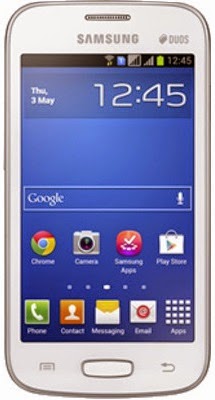
How to Use Samsung Galaxy Star Pro as Modem to Connect to Internet From PC

Image
Samsung Galaxy Star Pro Duos S7262 is a budget Android smartphone. It is powered by 1GHz Cortex A5 processor with 512MB of RAM. Internal storage of the device is 4GB and supports microSD card upto 32GB. The Galaxy Star Pro sports 4inch TFT capacitive touch screen with WVGA screen resolution.  Samsung Galaxy Star Pro Duos price in India is Rs.5485. This Budget Samsung Dual sim Smartphone has 1500 mAh battery which is rated to provide 15 hours of talk time and standby time of 370 hours. There is 2MP primary camera for taking stills and recording videos. Connectivity features of the device includes 2G, WiFi, Bluetooth, USB tethering and WiFi Hotspot. As you can already read, Samsung Galaxy Star Pro Duos does not comes with 3G data support. Hence the mobile data will very slow in 2G network. It is not ideal to use this as modem to connect to internet from PC. However, in emergency you can use this device as this device supports WiFi hotspot and USB tethering. Lets have a look on...

Samsung Galaxy Core 2 as modem to connect to internet from PC

Image
Samsung Galaxy Core 2 is a mid range dual sim Android smartphone. It runs on Android 4.4.2 Kitkat along with Touchwiz user interface. There is a 4.5 inch TFT multi touch capacitive touchscreen with screen resolution of 480x800 pixels.  Galaxy Core 2 is powered by 1.2GHz quad core processor with 768MB of RAM.  Internal storage of this Samsung Dual sim Android phone is 4GB and supports microSD card upto 64GB.  Connectivity features of the device 2G, 3G, WiFi, Bluetooth, USB, WiFi hotspot and USB tethering. It houses 2000 mAh battery. How to use Samsung Galaxy Core 2 as Modem Samsung Galaxy Core 2 USB tethering Samsung Galaxy Core 2 can be used as USB modem through the USB tethering feature. To use Galaxy Core 2 as modem, follow the below mentioned steps. Enable the mobile data which you can accesss through the quick menu. You can access this menu from swiping the screen from top to bottom Connect your phone to PC using the USB cable. Normally Windows detects t...

Samsung Galaxy S Duos As Modem to connect to internet from PC

Image
Samsung Galaxy S Duos is a budget GSM+GSM dual sim Android smartphone. The device is powered by 1GHz Cortex A5 processor with 768MB of RAM and Adreno 200 GPU. It has 4 inch TFT capacitive Touchscreen with screen resolution of 480X800 pixels and pixel density of 233 ppi pixel density. The connectivity features of Galaxy S Duos 2G, 3G, WiFi, Bluetooth and USB. Internal storage of the device is 4GB and support microSD card upto 32GB. Samsung Galaxy S Duos runs on Android 4.0 ICS with Touchwiz user interface. The device supports USB and WiFi Tethering. The latest Samsung Galaxy S Duos price in India is Rs.9679. Samsung Galaxy S Duos USB tethering of Samsung Galaxy S Duos : Samsung Galaxy S Duos can be used as modem to connect to internet from PC using the USB tethering feature. To enable USB tethering, follow the instruction given below. Step 1: First enable mobile data by accessing quick access icons by swiping down from the home screen. Or you can even enable by going to Setting-...