Posts

How to Use OnePlus One as Modem to Connect to PC
Image
OnePlus One is the very feature rich smartphone for a affordable price. When we have a smartphone like this, at times we are expect to share the mobile data with PC or other WiFi enabled data. Then we start thinking, is there any way, we can share the mobile data of OnePlus One with PC or iPad or any other WiFi enabled devices. So here is the guide on How to use OnePlus One as modem. How to use OnePlus One as Modem There are three ways through which you can use OnePlus One as modem. First is WiFi Hotspot,Second USB tethering and the last one is Bluetooth Tethering.  So we will learn one by one of these features. How to use OnePlus One as Personal WiFi Hotspot First enable the mobile data on you smartphone. Then go to settings->More... Go to Tethering & Portable hotspot Now enable the Portable Wi-Fi Hotspot. How to customise the Wi-Fi Hotspot settings If you have you forgot your OnePlus One WiFi hotspot password or if you want set the password as per your ...

How to Use Samsung Galaxy Grand Prime as Modem using Tethering and WiFi Hotspot

Image
Samsung Galaxy Grand Prime is one of the popular mid range Android Dual sim smartphone. It is powered by 1.2GHz quad core processor with 1GB of RAM and Adreno 306 GPU. The device sports 5 inch TFT capacitive touchscreen with qHD resolution. The connectivity features of the device includes 2G, 3G, WiFi, microUSB, Bluetooth and  GPS. In this guide, we will learn how to use  Samsung Galaxy Grand Prime as Modem. Read: Pros and Cons of Samsung Galaxy Grand Prime How to Use Samsung Galaxy Grand Prime as Modem Samsung galaxy Grand Prime can be used as modem using the WiFi hotspot and USB tethering features. How to use Samsung Galaxy Grand Prime as WiFi hotspot To use the Grand prime as WiFi hotspot, follow the steps given below. Enable the mobile data on your grand Prime. Go to settings-> More Settings Tap tethering and Portable Hotspot Move the slider to right infront of the Portable Wi-Fi Hotspot Tap on to the Portable Wi-Fi Hotspot to configure the ...

How to Use Nokia Lumia 630 as WiFi Hotspot

Image
Nokia Lumia 630 is a Dual sim Windows 8.1 running smartphone. It has 5MP primary camera and powered by 1.2 GHz Qualcomm Snapdragon 400 Quad Core Processor with 512MB of RAM. It has 4.5 inch capacitive touch screen with Clear Black technology and WVGA screen resolution. In this guide, we will learn to use Nokia Lumia 630 as modem through WiFi Hotspot. How to use Nokia Lumia 630 as WiFi Hotspot Lumia 630 has connectivity features such 2G, 3G, WiFi, Bluetooth and USB. Unlike Android devices, Windows phones are not providing the USB tethering feature. However, Lumia smartphones support WiFi hotspot features. In Nokia Lumia 630, it is called as Internet sharing. Let us see how to use Lumia smartphone as WiFi hotspot First Enable the data connectivity. Do note, charges are applicable as per your data provider. Go to Settings. Under Settings got to internet sharing and  slide to enable Internet sharing or WiFi Hotspot. Customise Nokia Lumia 630 WiFi hotspot Settings ...

How to Use iPhone 6 as Personal Hotspot Modem

Image
iPhone 6 personal hotspot is a feature through which sharing the iPhone internet connection to other device such as iPad mini, iPad air, Nexus 6, Nexus 9 etc through WiFi, Bluetooth or a USB cable. To use iPhone 6 as modem, the device should be connected to the internet over the cellular data network. We will lean to use iPhone 6 as Personal Hotspot modem. How to Use iPhone 6 as Modem Note: This feature may not be available with all carriers. Additional fees may apply. Contact your carrier for more information. To share the data  connection of iPhone 6 with other devices, first you need to enable the personal hotspot. For that follow the steps given below. Go to Settings> Cellular, and then tap Personal Hotspot to enable it. After you turn on Personal Hotspot, other devices can connect in the following ways: Wi-Fi :On the device, choose your iPhone from the list of available Wi-Fi networks. USB :Connect iPhone to your computer using the cable that came with it. In...

How to use Asus Zenfone 5 as modem to Connect to Internet from PC

Image
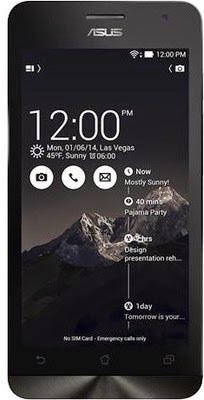
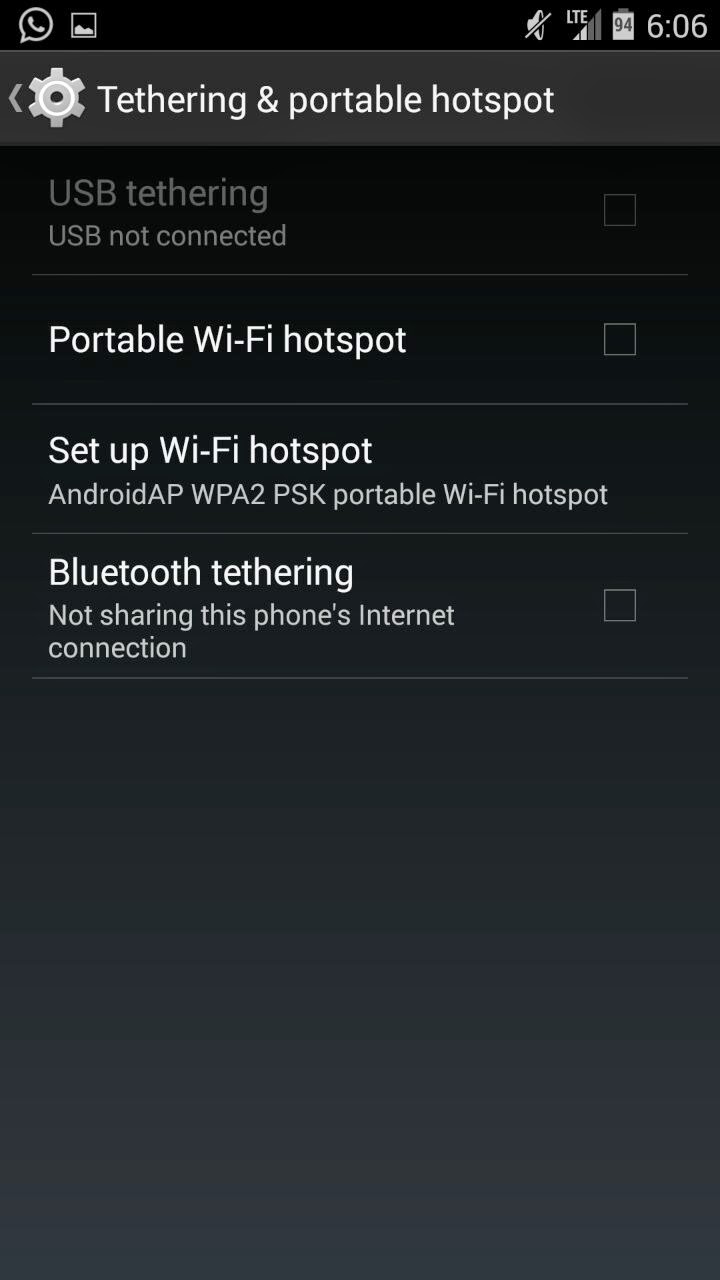
Asus Zenfine 5 A501CG is available in two variants based on the internal storage capacity. One is 8GB and another one is 16GB. The device is powered by 1.6 GHz Intel Atom Z2560 Processor with Intel Hyper Threading Technology, Dual Core with 1GB of RAM. It has 5 inch 720p resolution Corning Gorilla Glass protected display, 8MP primary camera and 2MP front facing camera. It houses Li-ion 2110 mAh battery. It is most of the popular connectivity features. In this post we see how to use Asus Zenfone 5 as modem to connect to Internet from PC. How to use Asus Zenfine 5 as Modem There are three ways through which you can share the mobile data of Zenfone 5 with other devices. WiFi hotspot, USB tethering and Bluetooth Tethering. How to use Asus Zenfone 5 as WiFi hotspot To use Asus Zenfone 5 as WiFi hotspot, you need to have active mobile data and enable it. Now follow the step given below. Zenfone 5 WiFi hotspot is useful in sharing the data with WiFi enabled devices such as iPad m...

How To Use Sony Xperia M2 as Modem to Connect to Internet From PC

Image
Sony Xperia M2 and Xperia M2 Dual are the two higher mid range Android smartphones. Both are identical interms of specification except the number sim they support.  The Sony Xperia M2 is powered by 1.2 GHz Qualcomm MSM8226 Quad Core Processor with 1GB of RAM. It has 4.8 inch qHD display and 8MP primary camera. It supports most of the connecting features. In this Xperia Tips post, we will learn how to use Sony Xperia M2 as Modem to connect to Internet from PC. How to use Sony Xperia M2 as Modem There are three ways, you can share the internet data from your Xperia M2 to other devices. 1. WiFi hotspot 2.USB tethering 3. Bluetooth Tethering. In this post we will learn USB tethering and WiFi hotspot. How to use Sony Xperia M2 as WiFi Hotspot Go to Settings from the app tray. Then go to  More… > Tethering & portable hotspot. It is good configure WiFi hotspot settings before you enable Xperia M2 WiFi Hotspot. Tap Portable Wi-Fi hotspot settings ...

How to Use Xiaomi Mi 3 as Modem to Connect to Internet

Image
Xiaomi Mi 3 is one of the best Dual sim Android smartphone for the price it is offered. 2.3 GHz Qualcomm Snapdragon 800 8274AB Quad Core Processor, 2GB RAM, 13 MP primary camera, 2MP secondary front facing camera, 5 inch full HD display screen and Decent connectivity features make this device one of them most attractive budget smartphone. One of the features of the device includes USB tethering and WiFi Hotspot feature. Using these, we can use Xiaomi Mi 3 as modem to connect to internet from PC and other WiFi enabled device. So in this Xiaomi Mi 3 tip, we will see how to use Xiaomi Mi 3 as modem. How to use Xiaomi Mi 3 as Modem As I mentioned earlier, based on our requirements, there are two ways to achieve this. One is through using Xiaomi Mi 3 as Portable WiFi hotspot and another one is Xiaomi Mi 3USB modem. Xiaomi Mi 3 WiFi hotspot To use Xiaomi Mi 3 WiFi hotspot follow the instructions mentioned below. Tap to Settings>General Settings>More..>Tethering ...