Posts

How to use iPhone 6S and iPhone 6S Plus as Mobile Wi-Fi Hotspot
Image
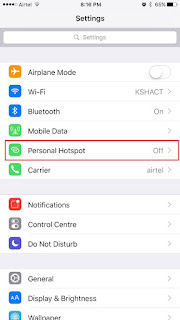
iPhone 6S and iPhone 6S Plus are the 2 latest flagship smartphones from Apple. It has got 4G high speed internet connectivity. Do you know, you can use iPhone 6S and iPhone 6S Plus as WiFi hotspot to your laptop or tablet?  Using WiFi hotspot feature you can share the mobile internet to other nearby wifi enabled devices wireless using iPhone as modem. Using iPhone 6S and iPhone 6S Plus mobile hotspot is very simple and does not take much time. It can be set up in less than 1 minutes. It is very easy to use and you can use it any time. But one thing you should always remember. Mobile Wi-Fi Hotspot uses mobile data. So you should be in network coverage area with data connection. Another important requirement is active data plan. Mobile Wi-Fi Hotspot uses your mobile data .Hence, it will drain your data allowance very quickly. So use it carefully. Otherwise your mobile bill will increase. In summary, whenever you are using  Mobile Wi-Fi Hotspot, make sure to keep your usag...

How to use 2nd Gen Moto E 2015 as Modem

Image
Motorola has launched the successor to its popular budget Android smartphone Moto E. It has many upgrades and improvement over its predecessor. In this post we will learn on How to use Moto E 2nd Gen Modem through WiFi hotspot and USB tethering. Read Moto E 2nd Gen Review . How to use 2nd Moto E 2015 as Modem How to use Moto E 2nd As WiFi Hotspot First enable the mobile data. Then go to settings->More.... Tap on to Tethering & mobile hotspot Enable the Mobile Wi-Fi hotspot by tapping on to it. Customise Moto E 2nd Gen WiFi Hotspot settings If you forgot your Moto E wifi hotspot password or if you want to reset the password follow the steps given below. Tap on to Set up Wi-Fi hotspot You enter or edit the Network name, Security type and the password. Once done, tap on to Save, Now any Wi-Fi enabled devices will be able to connect to your Moto E WiFi Hostpot. How to use Moto E 2015 as Modem through USB tethering Connect your Moto E to the PC thro...

How to Use OnePlus One as Modem to Connect to PC

Image
OnePlus One is the very feature rich smartphone for a affordable price. When we have a smartphone like this, at times we are expect to share the mobile data with PC or other WiFi enabled data. Then we start thinking, is there any way, we can share the mobile data of OnePlus One with PC or iPad or any other WiFi enabled devices. So here is the guide on How to use OnePlus One as modem. How to use OnePlus One as Modem There are three ways through which you can use OnePlus One as modem. First is WiFi Hotspot,Second USB tethering and the last one is Bluetooth Tethering.  So we will learn one by one of these features. How to use OnePlus One as Personal WiFi Hotspot First enable the mobile data on you smartphone. Then go to settings->More... Go to Tethering & Portable hotspot Now enable the Portable Wi-Fi Hotspot. How to customise the Wi-Fi Hotspot settings If you have you forgot your OnePlus One WiFi hotspot password or if you want set the password as per your ...

How to Use Samsung Galaxy Grand Prime as Modem using Tethering and WiFi Hotspot

Image
Samsung Galaxy Grand Prime is one of the popular mid range Android Dual sim smartphone. It is powered by 1.2GHz quad core processor with 1GB of RAM and Adreno 306 GPU. The device sports 5 inch TFT capacitive touchscreen with qHD resolution. The connectivity features of the device includes 2G, 3G, WiFi, microUSB, Bluetooth and  GPS. In this guide, we will learn how to use  Samsung Galaxy Grand Prime as Modem. Read: Pros and Cons of Samsung Galaxy Grand Prime How to Use Samsung Galaxy Grand Prime as Modem Samsung galaxy Grand Prime can be used as modem using the WiFi hotspot and USB tethering features. How to use Samsung Galaxy Grand Prime as WiFi hotspot To use the Grand prime as WiFi hotspot, follow the steps given below. Enable the mobile data on your grand Prime. Go to settings-> More Settings Tap tethering and Portable Hotspot Move the slider to right infront of the Portable Wi-Fi Hotspot Tap on to the Portable Wi-Fi Hotspot to configure the ...

How to Use Nokia Lumia 630 as WiFi Hotspot

Image
Nokia Lumia 630 is a Dual sim Windows 8.1 running smartphone. It has 5MP primary camera and powered by 1.2 GHz Qualcomm Snapdragon 400 Quad Core Processor with 512MB of RAM. It has 4.5 inch capacitive touch screen with Clear Black technology and WVGA screen resolution. In this guide, we will learn to use Nokia Lumia 630 as modem through WiFi Hotspot. How to use Nokia Lumia 630 as WiFi Hotspot Lumia 630 has connectivity features such 2G, 3G, WiFi, Bluetooth and USB. Unlike Android devices, Windows phones are not providing the USB tethering feature. However, Lumia smartphones support WiFi hotspot features. In Nokia Lumia 630, it is called as Internet sharing. Let us see how to use Lumia smartphone as WiFi hotspot First Enable the data connectivity. Do note, charges are applicable as per your data provider. Go to Settings. Under Settings got to internet sharing and  slide to enable Internet sharing or WiFi Hotspot. Customise Nokia Lumia 630 WiFi hotspot Settings ...

How to Use iPhone 6 as Personal Hotspot Modem

Image
iPhone 6 personal hotspot is a feature through which sharing the iPhone internet connection to other device such as iPad mini, iPad air, Nexus 6, Nexus 9 etc through WiFi, Bluetooth or a USB cable. To use iPhone 6 as modem, the device should be connected to the internet over the cellular data network. We will lean to use iPhone 6 as Personal Hotspot modem. How to Use iPhone 6 as Modem Note: This feature may not be available with all carriers. Additional fees may apply. Contact your carrier for more information. To share the data  connection of iPhone 6 with other devices, first you need to enable the personal hotspot. For that follow the steps given below. Go to Settings> Cellular, and then tap Personal Hotspot to enable it. After you turn on Personal Hotspot, other devices can connect in the following ways: Wi-Fi :On the device, choose your iPhone from the list of available Wi-Fi networks. USB :Connect iPhone to your computer using the cable that came with it. In...

How to use Asus Zenfone 5 as modem to Connect to Internet from PC

Image
Asus Zenfine 5 A501CG is available in two variants based on the internal storage capacity. One is 8GB and another one is 16GB. The device is powered by 1.6 GHz Intel Atom Z2560 Processor with Intel Hyper Threading Technology, Dual Core with 1GB of RAM. It has 5 inch 720p resolution Corning Gorilla Glass protected display, 8MP primary camera and 2MP front facing camera. It houses Li-ion 2110 mAh battery. It is most of the popular connectivity features. In this post we see how to use Asus Zenfone 5 as modem to connect to Internet from PC. How to use Asus Zenfine 5 as Modem There are three ways through which you can share the mobile data of Zenfone 5 with other devices. WiFi hotspot, USB tethering and Bluetooth Tethering. How to use Asus Zenfone 5 as WiFi hotspot To use Asus Zenfone 5 as WiFi hotspot, you need to have active mobile data and enable it. Now follow the step given below. Zenfone 5 WiFi hotspot is useful in sharing the data with WiFi enabled devices such as iPad m...

How To Use Sony Xperia M2 as Modem to Connect to Internet From PC

Image
Sony Xperia M2 and Xperia M2 Dual are the two higher mid range Android smartphones. Both are identical interms of specification except the number sim they support.  The Sony Xperia M2 is powered by 1.2 GHz Qualcomm MSM8226 Quad Core Processor with 1GB of RAM. It has 4.8 inch qHD display and 8MP primary camera. It supports most of the connecting features. In this Xperia Tips post, we will learn how to use Sony Xperia M2 as Modem to connect to Internet from PC. How to use Sony Xperia M2 as Modem There are three ways, you can share the internet data from your Xperia M2 to other devices. 1. WiFi hotspot 2.USB tethering 3. Bluetooth Tethering. In this post we will learn USB tethering and WiFi hotspot. How to use Sony Xperia M2 as WiFi Hotspot Go to Settings from the app tray. Then go to  More… > Tethering & portable hotspot. It is good configure WiFi hotspot settings before you enable Xperia M2 WiFi Hotspot. Tap Portable Wi-Fi hotspot settings ...

How to Use Xiaomi Mi 3 as Modem to Connect to Internet

Image
Xiaomi Mi 3 is one of the best Dual sim Android smartphone for the price it is offered. 2.3 GHz Qualcomm Snapdragon 800 8274AB Quad Core Processor, 2GB RAM, 13 MP primary camera, 2MP secondary front facing camera, 5 inch full HD display screen and Decent connectivity features make this device one of them most attractive budget smartphone. One of the features of the device includes USB tethering and WiFi Hotspot feature. Using these, we can use Xiaomi Mi 3 as modem to connect to internet from PC and other WiFi enabled device. So in this Xiaomi Mi 3 tip, we will see how to use Xiaomi Mi 3 as modem. How to use Xiaomi Mi 3 as Modem As I mentioned earlier, based on our requirements, there are two ways to achieve this. One is through using Xiaomi Mi 3 as Portable WiFi hotspot and another one is Xiaomi Mi 3USB modem. Xiaomi Mi 3 WiFi hotspot To use Xiaomi Mi 3 WiFi hotspot follow the instructions mentioned below. Tap to Settings>General Settings>More..>Tethering ...

How to Download Asus Zenfone 4 PC suite USB Drivers

Image
Asus Zenfone 4 is the most affordable smartphone in the Zenfone series from the Asus. It has got good connectivity features and decent power which is enough for day to day activity of a casual user. Even games like, Subway surfer, temple run runs smoothly. Even high end games like dead trigger, Asphalt 8 games can be played with few compromises. Due to all these, this phone became very warm welcome from the customers. To use all the features, there is a requirement of USB drivers. Normally, we get it with a PC suite. Unfortunately, there is no PC suite for Asus Zenfone 4. Read: How to use Asus Zenfone 4 as modem . Don't get upset. Asus does provides USB drivers for Zenfone 4. This will be enough for 90% of the requirements of a PC suite. To use Zenfone 4 USB tethering, you are required install the drivers on your PC. You can download and install the official USB driver for Zenfone 4 from the support page or Clicking here . For other tasks of Zenfone 4 pc suite, you can use o...

How to Use LG G3 as Modem to connect to Internet

Image
LG G3 is a flagship device and one of the powerful Android smartphone too. The specifications of 2.5 GHz Qualcomm Snapdragon Quad Core Processor with 3GB RAM, 5.5 inch QHD screen, 3000mAh battery. Connectivity features are 2G, 3G, WiFi , USB and Bluetooth. The device also supports USB tethering and WiFi hotspot. It is also called as LG G3 Personal hotspot, Portable Hotspot, tethering etc. We will look into how to use LG G3 as Modem through USB tethering and WiFi hotspot. How to Use LG G3 as WiFi Hotspot Like any other Android smartphone, you can use LG G3 as WiFi portable hotspot. For enabling this, follow the steps given below. Do note that, you should have active data plan enabled on your G3. The charges are applicable as per the your service provider. First enable the mobile data. Go to settings, from the quick settings tab which you can access through pulling the screen from top to down. Under Settings, choose Tethering & Networks Slide the bar to right which is in...

How to Use Moto G as Modem to Connect to Internet

Image
Motorola Moto G is one of the best midrange Dual sim Android smartphone. After the price cut of around 2k, it became more attractive. It has got all the features which is required for a day to day activity with light gaming and photography. The latest Moto G price in India is Rs.11,999 for 16GB variant. Just to recap the features, here are the key specifications of Moto G. It is powered by 1.2 GHz Quad Core Qualcomm Snapdragon 400  Processor  with 1GB of RAM. The device comes with 4.5 inch IPS LCD screen with resolution of 1280 x 720 Pixels and Corning Gorilla Glass 3 Protection. Motorola Moto G Packs 5MP primary camera and 1.3MP front facing camera. The connectivity features of the device are GPRS, EDGE, 3G, WiFi, Bluetooth and USB.  Moto G has a decent battery of 2070 mAh battery. How to use Moto G as Modem to connect to internet Moto G has got the latest Android update which is Android 4.4.4 Kitkat. The interface wise is very similar to Moto E. Read...

How to Change Moto E Ringtone

Image
When we buy a new Motorola Moto E, it comes with default ringtone. But we might need to customise the ringtone as per our taste because many reasons such as to have unique tone or set our favorite MP3 as ringtone on Moto G.  There ways you actually customise the ringtone. One is through File manager method and another one is through PC. In this Moto E tips guide we will see on how to set custom MP3 as ringtone on Moto E. You might also read: How use Motorola Moto E as Modem . How to Set Custom MP3 Ringtone on Moto E Method 1: As you might have come across, Moto E out of the box does not come with file manager. So we need to install good file manager first. There are many free file managers are available. I personally use ES File Explorer App. This is free app and you can download it from the Play store. Once you have installed the file manager, Go to Settings->Sound. Tap on to phone ringtone.  You will get a pop up with the header "Complete Action Using". Sel...

How to Use Nokia Lumia 525 as Modem to Connect to Internet from PC

Image
Nokia Lumia 525 is a Windows 8 running smartphone. It is powered by 1 GHz Qualcomm Snapdragon S4 Dual Core Processor with 1GB of RAM.  It sports 4 inch capacitive touch screen with WVGA screen resolution. Nokia Lumia 525 price in India is Rs.8,899. Nokia Lumia 525 has 5MP primary camera which can record 720HD videos. Internal storage of this Nokia smartphone is 8GB and supports microSD card upto 64GB. It boasts 1430 mAh battery which is rated to provide a talk time of 16 hours and standby time of 336 hours. Connectivity features of the device includes 2G, 3G, WiFi, USB, Bluetooth and GPS. Unlike Android smartphones, Windows phones does not support USB tethering. So you cannot use Nokia Lumia 525 as USB modem. However, you can use Lumia 525 as WiFi hotspot through you can share the mobile data with other WiFi enabled devices. How to Use Nokia Lumia 525 as Modem As said earlier, you can share mobile data with other device using only WiFi hotspot feature in Lumia 525. ...

How to Use Samsung Galaxy Star Pro as Modem to Connect to Internet From PC

Image
Samsung Galaxy Star Pro Duos S7262 is a budget Android smartphone. It is powered by 1GHz Cortex A5 processor with 512MB of RAM. Internal storage of the device is 4GB and supports microSD card upto 32GB. The Galaxy Star Pro sports 4inch TFT capacitive touch screen with WVGA screen resolution.  Samsung Galaxy Star Pro Duos price in India is Rs.5485. This Budget Samsung Dual sim Smartphone has 1500 mAh battery which is rated to provide 15 hours of talk time and standby time of 370 hours. There is 2MP primary camera for taking stills and recording videos. Connectivity features of the device includes 2G, WiFi, Bluetooth, USB tethering and WiFi Hotspot. As you can already read, Samsung Galaxy Star Pro Duos does not comes with 3G data support. Hence the mobile data will very slow in 2G network. It is not ideal to use this as modem to connect to internet from PC. However, in emergency you can use this device as this device supports WiFi hotspot and USB tethering. Lets have a look on...

HTC Desire 616 As Modem to Connect To Internet From PC

Image
HTC Desire 616 is a stylish Android Dual sim Smartphone. It is powered by Octa Core 1.4GHz Cortex A7 based CPU with Mediatek MT6592 chipset and 1GB of RAM. It runs on Android 4.4.2 Jellybean and HTC Sense 5.5 UI on top of it. HTC Desire 616 price in India is Rs.16,999. HTC Desire 616 Dual sim sports 5 inch screen with a screen resolution of 1280x720 pixels.  It has 8MP primary camera and 2MP front facing camera. The device comes with 4GB of internal storage and 32GB of microSD card support.  It houses a decent Li-polymer 2000 mAh battery. The Connectivity features of HTC Desire 616 includes 2G, 3G, WiFi, Bluetooth and USB. Lets have a look on how to use HTC Desire 616 as modem using the USB tethering or WiFi hotspot. How to use HTC Desire 616 as Modem HTC Desire 616 as WiFi Hotspot As already stated, HTC Desire 616 Dual sim is a Android Jellybean running device. As a standard feature of Android, this device too supports WiFi Hotspot feature. So we will learn how to u...

Samsung Galaxy Core 2 as modem to connect to internet from PC

Image
Samsung Galaxy Core 2 is a mid range dual sim Android smartphone. It runs on Android 4.4.2 Kitkat along with Touchwiz user interface. There is a 4.5 inch TFT multi touch capacitive touchscreen with screen resolution of 480x800 pixels.  Galaxy Core 2 is powered by 1.2GHz quad core processor with 768MB of RAM.  Internal storage of this Samsung Dual sim Android phone is 4GB and supports microSD card upto 64GB.  Connectivity features of the device 2G, 3G, WiFi, Bluetooth, USB, WiFi hotspot and USB tethering. It houses 2000 mAh battery. How to use Samsung Galaxy Core 2 as Modem Samsung Galaxy Core 2 USB tethering Samsung Galaxy Core 2 can be used as USB modem through the USB tethering feature. To use Galaxy Core 2 as modem, follow the below mentioned steps. Enable the mobile data which you can accesss through the quick menu. You can access this menu from swiping the screen from top to bottom Connect your phone to PC using the USB cable. Normally Windows detects t...

Micromax Unite 2 as modem to connect to internet from PC

Image
Micromax Unite 2 is a dual sim Android smartphone. It is powered by 1.3GHz quad core processor with 1GB of RAM. The device runs on Android 4.4.2 Kitkat and has 4GB internal storage. There is a provision for additional storage through microSD card upto 32GB.  Micromax Unite 2 sports 4.7 inch display with resolution of 800x480 pixels. This Android dual sim Android phone has 5MP primary camera and 2MP front facing camera. Micromax Unite 2 price in India is Rs.6874. In this tutorial we will learn to use Unite 2 as modem. How to use Micromax Unite  2 as modem Micromax Unite 2 as USB modem We can use Micromax Unite 2 as USB modem using the USB tethering feature. Connect your Unite 2 device to PC using the USB cable. Enable the data on your phone On your phone, navigate to Settings–>More–> Tethering & Portable Hotspot–> USB tethering. Enable USB tethering by tapping on it. Your PC will automatically configure the required setting. Now your Micromax...

Sony Xperia T3 as Modem to connect to Internet from PC

Image
Sony Xperia T3 is a single sim Android smartphone. It has good specifications such as 5.3 inch full HD IPS display screen, Quad Core 1.4 GHz Qualcomm Snapdragon MSM8228 Processor, 1GB  RAM, 8GB internal storage, upto 32GB expandable storage. The connectivity features of the device includes 2G, 3G, WiFi, Bluetooth, USB, USB tethering and WiFi Hotspot. Sony Xperia T3 price in India is 26,595. In this tutorial, we will see how to use Sony Xperia T3 as modem through USB tethering and WiFi hotspot. How to Use Sony Xperia T3 as Modem Below are the two ways through which you can share the data of your Xperia T3 to PC or WiFi enabled devices. 1. USB tethering 2. WiFi hotspot Sony Xperia T3 as USB modem To use Xperia T3 as modem, follow the steps given below. Enable the data on your device Step 1: Connect your device to computer using the USB cable. Step2: Now touch Applications . Then go to settings->More Step 3: Tap to Tethering and portable hotspot . Step 4: Enab...

Motorola Moto E as modem to connect to Internet from PC

Image
Motorola Moto E is a dual sim Android smartphone powered by 1.2GHz MSM8x10 Dual core processor with 1GB RAM. It has 4.3 inch display screen with qHD, 960 x 540 Pixels. The Moto E comes with 5MP primary camera and has 4GB of Internal storage. It also supports microSD card for additional memory. The connectivity features includes 2G,3G, Bluetooth, USB, WiFi, USB tethering and WiFi hotspot. The advantages of having a android phone with 3G data is that, we can share the data with PC or other devices using USB tethering and WiFi Hotspot features. In this, we will see how to use Moto E USB tethering and Moto E WiFi Hotspot features. How to Use Motorola Moto E as Modem How to use Moto E USB tethering If you want to share Moto E data with your PC, then follow steps below. Connect your device to PC. Windows normally detects the phone and installs required drivers. If it is not done, download the required drivers from the Motorola Support page. Enable data on your Moto E phon...